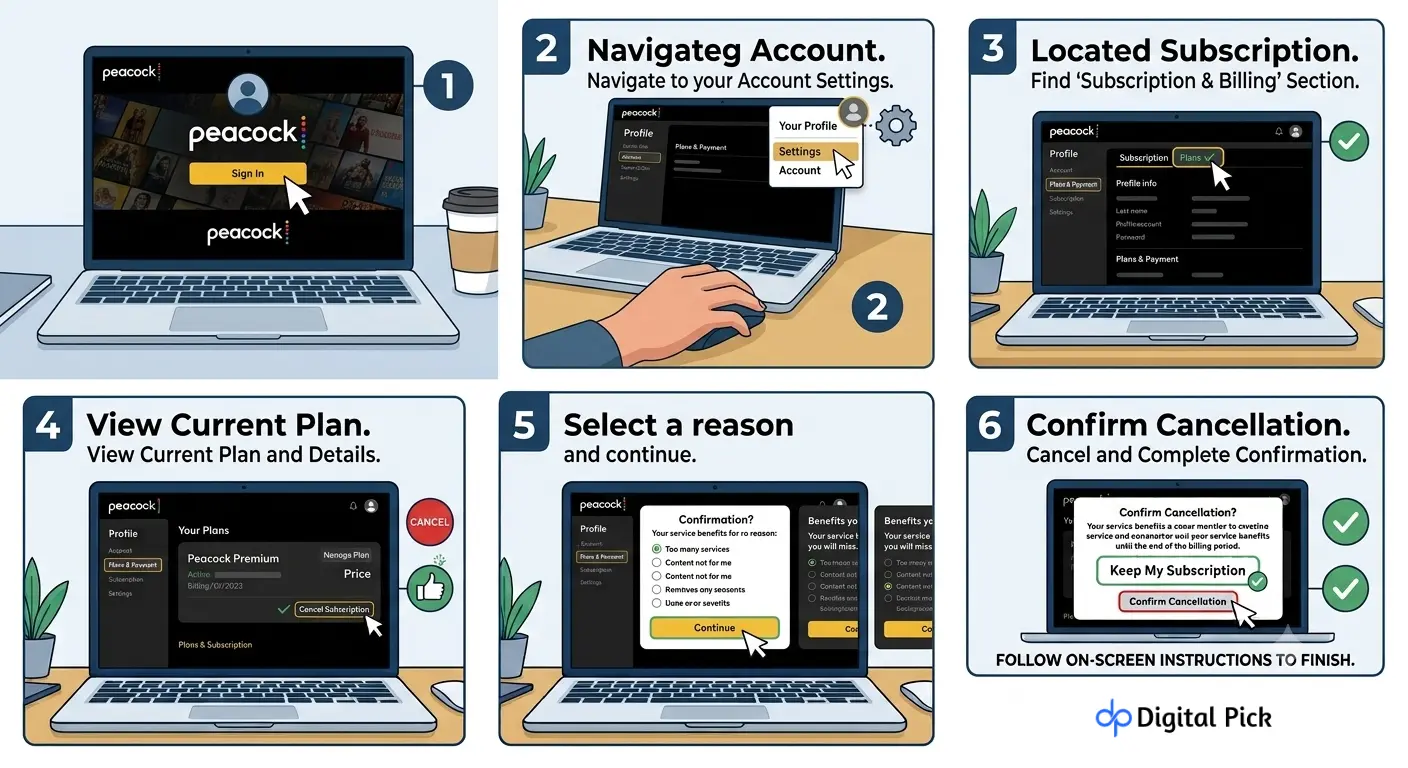
If you want to stop paying for Peacock TV, you can cancel your subscription at any time. What to do for this depends on how you created your account and who handles your billing.
This helpful post tells you how to cancel your Peacock plan on all devices and third-party billers.
How Do You Cancel Peacock TV?
The standard way to cancel Peacock is through a web browser on your computer or mobile phone.
- Go to peacocktv.com and log into your account.
- Click your profile icon in the top right corner.
- Click Account in the upper right menu.
- Scroll down to the Plans & Payments section.
- Click the link that says Cancel Plan.
- Follow the prompts on the screen to confirm your cancellation.
- Check your email for a written cancellation confirmation message from Peacock.
If you do not see the cancel option on the website, a third-party company manages your subscription billing.
How to Determine Who Bills Your Peacock Account
Before you start, find out which company takes your monthly or annual payment. You have to cancel through the same platform that you used to sign up.
| Billing Method | Where You Signed Up | How to Cancel |
| Peacock Direct | Peacocktv.com website | Peacock web account page |
| Apple App Store | iPhone, iPad, or Apple TV | Apple ID subscription settings |
| Google Play | Android phone or tablet | Google Play Store app |
| Roku | Roku TV or Roku streaming device | Roku device menu or Roku account website |
| Amazon | Fire TV stick or Prime Video | Amazon account subscriptions page |
| Xfinity / Cox | Cable box or Internet bundle | Xfinity or Cox account portal |
Decision Pathway: Finding Your Correct Cancellation Method
Use this decision chart to identify your exact cancellation path.
[Open Peacocktv.com and Log In]
│
▼
Go to Account Settings Page
│
▼
Is there a “Cancel Plan” button visible?
├── YES ──► Click Cancel Plan ──► Confirm on screen
│
└── NO ──► Look at the listed Biller Name
│
Apple ──► Open iPhone Settings ──► Subscriptions
Google ──► Open Play Store ──► Payments & Subscriptions
Roku ──► Press * on Roku Remote or visit Roku.com
Amazon ──► Open Amazon.com ──► Memberships & Subscriptions
Xfinity/Cable ──► Log into Cable Provider Account
Scenario 1: Cancel Peacock via Web Browser
If you are paying directly to Peacock using a credit card, debit card or PayPal account, follow these steps:
Step 1: In your web browser open Peacock TV
Open Google Chrome, Safari, Mozilla Firefox or Microsoft Edge on your computer or mobile device. Into the top address bar type peacocktv.com and press Enter.
Step 2: Sign into Your Account
Click on the ‘Sign in‘ button at the top right corner of the home page.
Enter the email address and password associated with your Peacock account. Click on ‘Sign in‘.
Step 3: Open Account Settings
Look for your profile icon at the top right of the screen. Click on that.
From the drop-down menu choices select Account.
Step 4: Locate the Plans & Payments Tab
Scroll down on the main account dashboard until you see the ‘Plans & Payments‘ section.
Take a look at your current active plan. You will see the name of your plan, billing date, and price.
Step 5: Click Cancel Plan
Click the blue link or button labeled Cancel Plan.
Peacock will show promotional offers or ask if you want to switch to a lower plan tier.
Step 6: Confirm Your Cancellation
Click Continue to Cancel to decline alternative offers.
Select a reason for canceling from the listed options if requested.
Click Confirm Cancellation to finalize your request.
Step 7: Verify Cancellation Confirmation
Check your inbox for an automatic confirmation email from Peacock TV.
Keep this email message as proof that you have terminated your subscription.
Scenario 2: Cancel Peacock on iPhone, iPad, or Apple TV
If you bought your subscription through the Apple App Store, Apple handles your billing. You cannot cancel through the Peacock website.
Cancel Using an iPhone or iPad
- Open the Settings app on your iPhone or iPad.
- Tap your Name and Apple ID banner at the top of the settings page.
- Tap Subscriptions from the menu choices.
- Scroll through your list of active subscriptions and tap Peacock.
- Tap the red button labeled Cancel Subscription.
- Tap Confirm when the pop-up menu asks you to verify your choice.
Cancel Using a Mac Computer
- Open the App Store app on your Mac computer.
- Click your name or profile image at the bottom left corner.
- Click Account Settings at the top of the window.
- Scroll down to the Manage section and click Manage next to Subscriptions.
- Find Peacock and click Edit.
- Click Cancel Subscription and confirm your selection.
Scenario 3: Cancel Peacock on Android Phones and Tablets
If you subscribed using an Android device, your monthly billing is controlled by Google Play.
Cancel Using the Google Play Store App
- Open the Google Play Store app on your Android phone or tablet.
- Tap your profile picture icon in the top right corner.
- Tap Payments & subscriptions from the menu list.
- Tap Subscriptions.
- Find Peacock in your active subscription list and tap it.
- Tap Cancel subscription at the bottom of the display.
- Choose a reason for leaving and tap Continue.
- Tap Cancel subscription one final time to complete the task.
Cancel Google Play Subscription on a Web Browser
- Open a web browser and visit play.google.com.
- Log into the Google account connected to your Android phone.
- Click My subscriptions on the left navigation bar.
- Select Peacock from your list of active services.
- Click Manage and then select Cancel Subscription.
Scenario 4: Cancel Peacock on Roku Streaming Devices
If you created your Peacock account on a Roku device, Roku manages your payments.
Cancel Using Your Roku Remote Control
- Press the Home button on your Roku remote control.
- Move the selection grid over the Peacock app tile. Do not open the app.
- Press the Star (*) button on your remote control to open the options menu.
- Select Manage subscription from the side pop-up menu.
- Select Cancel subscription.
- A message will show the date your access ends. Select Cancel subscription again to confirm.
- Select Done to close the window.
Cancel Peacock on the Roku Website
- Open your web browser and go to my.roku.com.
- Log into your personal Roku account.
- Click Manage your subscriptions under the Account Information section.
- Locate Peacock in the active subscriptions list.
- Select Unsubscribe next to the Peacock listing.
- Confirm your choice to stop automatic renewal charges.
Scenario 5: Cancel Peacock on Amazon Fire TV or Prime Video
If you’ve purchased Peacock through Amazon, you’ll need to cancel it through your Amazon account portal.
Steps to Cancel Peacock on Amazon
- Visit amazon.com inside your browser and log into your account.
- Move your mouse to ‘Account & Lists‘ in the navigation menu provided above.
- Click on ‘Membership and Subscription’ from the options in the drop-down menu.
- Click Prime Video Channels or Appstore Subscriptions.
- Find Peacock in your active subscription list.
- Click Manage Subscription next to the Peacock channel logo.
- Click the link labeled Cancel Channel or Turn off auto-renew.
- Confirm your choice on the final prompt box.
Scenario 6: Cancel Peacock through Cable or Internet Providers
Some users get Peacock through cable providers like Xfinity, Cox, or Spectrum.
Canceling via Xfinity (Comcast)
- Visit the official website xfinity.com by opening your browser.
- Log in to your Xfinity account using your household primary username.
- Click on ‘Account‘ and open your ‘Bill Overview‘ section.
- Navigate to Manage TV or Services.
- Find your Peacock add-on package.
- Select ‘Remove Service‘ to update your monthly plan or follow the instructions on the screen.
- Contact Xfinity customer service by phone if the online portal locks subscription changes.
Canceling via Cox Communications
- Log into your Cox online account at cox.com.
- Go to My Account and select My Services.
- Find Peacock Premium in your add-on channels
- Select Remove Option and confirm your updated billing plan.
What Happens After You Cancel Your Peacock Subscription?
Understanding post-cancellation information helps you avoid unexpected items that pop up on your billing statement.
Access Duration after Cancellation
When you cancel a paid Peacock plan, your service doesn’t stop immediately.
- You’ll continue to get access to movies, shows, and live sports until your billing cycle ends.
- After the cancellation, Peacock shows the date of your last access to the account page.
- You will not receive further recurring charges once the billing cycle finishes.
Peacock Refund Policy
Peacock does not offer pro-rated refunds for unused days during a billing period.
- If you cancel halfway through your month, Peacock will not refund the remaining days.
- Your service simply runs until the current paid period ends.
- Annual plans operate under the same rule. Canceling an annual plan stops auto-renewal for the next year.
What Happens to Your Profile Data?
Peacock saves your user profile data, watch history and watch list after cancellation.
- Your account converts to an inactive status.
- If you decide to resubscribe later, your saved preferences remain available.
- You can re-sign in to peacocktv.com at any time to restart your plan.
How to Cancel a Peacock Free Trial before Getting Charged
If you’ve signed up for a promotional free trial of Peacock, cancel it ahead of time to avoid automatic charges.
- Check the exact day your free trial ends in your account settings.
- Cancel at least 24 hours before the trial period expires.
- On some platforms, canceling a free trial stops access immediately.
- Review the trial terms displayed on screen during your cancellation request.
Troubleshooting Common Peacock Cancellation Errors
Sometimes users run into obstacles when trying to cancel Peacock. Here is how to resolve typical issues.
| Common Issue | Likely Cause | Recommended Solution |
| No Cancel Button Visible | Billed by third party (Apple, Roku, etc.) | Cancel directly through that third-party provider |
| Forgot Account Password | Lost login credentials for Peacock site | Use peacocktv.com/signin password reset link |
| Multiple Active Accounts | Signed up using different email addresses | Check email receipts to find active billed address |
| No Confirmation Email | Cancellation process was not completed | Log back into account page to verify status |
Problem 1: No Cancel Button Available on Peacock Website
- Cause: Your account is billed through a third-party partner such as Apple, Google, Roku or Amazon.
- Solution: Look at the text on your account page. Find the message “Billed through” (company name). Follow the cancellation steps for that particular partner.
Problem 2: Forgot Your Peacock Login Password
- Cause: You can’t log in to peacocktv.com to access your account settings.
- Solution: Go to peacocktv.com / signin and type ‘Forgot Password?’ Click on ‘. Enter your email address to receive a password reset link.
Problem 3: Billed Under a Different Email Address
- Cause: You created multiple accounts using different email addresses.
- Solution: Check your email inbox to see receipts for past payments from Peacock. Locate the email address that received the billing notification and sign in to that particular account.
Problem 4: Bank Statement Still Shows Charges after Cancellation
- Cause: The cancellation process was not completed, or you canceled the wrong account.
- Solution: Find the official email confirmation in your inbox. If you haven’t received a confirmation email, log back into Peacock to confirm your status.
Comparison of Platform Cancellation Rules
This table shows the main differences between cancelling Peacock subscriptions on different billing platforms.
| Platform | Cancellation Location | Requires Computer | Immediate Access Loss | Confirmation Email |
| Peacock Direct | Peacocktv.com | No (Mobile Browser Works) | No (Access Runs to Term) | Yes |
| Apple App Store | iOS Settings App | No (Use iPhone/iPad) | No (Access Runs to Term) | Yes (From Apple) |
| Google Play | Play Store App | No (Use Android Device) | No (Access Runs to Term) | Yes (From Google) |
| Roku | Roku Menu or Website | No (Use Remote Control) | No (Access Runs to Term) | Yes (From Roku) |
| Amazon | Amazon Account Portal | Yes (Browser Recommended) | No (Access Runs to Term) | Yes (From Amazon) |
| Xfinity | Xfinity Account Page | Yes (Browser Recommended) | Depends on Billing Cycle | Yes (From Xfinity) |
Post-Cancellation Security and Verification Checklist
Follow this checklist after completing your cancellation steps to guarantee your account is secure.
- Review your screen for a clear message saying “Subscription Canceled”.
- Check your primary email inbox for a cancellation receipt email.
- Log in to your Peacock account again and look for the ‘Plans & Payments‘ section.
- Make sure your status shows the expiry date instead of the auto-renew date.
- Check your bank or credit card statement on the next billing date and make sure there are no charges.
- Remove saved payment methods inside third-party app stores if you no longer use them.
Frequently Asked Questions
A: No. The Peacock smart TV application does not feature a cancellation button inside its settings menu. You must use a web browser on your phone or computer, or use your streaming device system menu.
A: Auto-renewal automatically stops when you cancel your subscription. Your plan remains active until the end of the current payment cycle and you will not be charged again.
A: No. Removing or uninstalling the Peacock app from your phone, tablet or smart TV does not cancel your paid subscription. You will continue to be charged until you complete the process of cancelling the subscription.
A: It is possible that you have another active Peacock account linked to another email address. Or, your cancellation attempt may not have been fully processed. Log in to check the status of your plan.
A: Please cancel at least 24 hours before the next billing date. This will prevent the automatic processing system from deducting money from your card for the next month.
A: Peacock does not have the facility to pause the subscription for some time. When you want to watch again, you’ll need to cancel your plan and sign up again.
A: No, Peacock does not offer a partial refund for the remaining days of your billing period. You can use the platform until the end of your paid term.
A: Visit www.peacocktv.com/help to use the live chat tool, view support articles, or send a Request for Help ticket directly to the customer support team.
A: Yes. Auto-renewal stops when you cancel an account funded with a Peacock Gift Card. Your service will continue until the balance of the gift card is zero.
A: At the end of the subscription period, your account will be deactivated. Your profile, watch history, and account settings are saved for future use.
A: Yes. Log in to your existing Peacock account at peacocktv.com and choose a new plan to resume your subscription immediately.
A: Log in to peacocktv.com, go to ‘Account‘, select ‘Plans & Payments‘ and update or clear your saved payment preferences once your subscription is over.
)