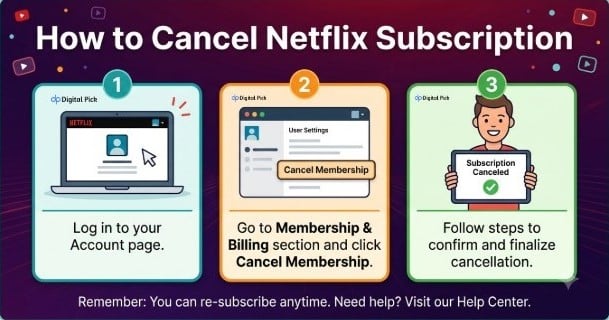
Canceling Netflix takes about three minutes, done through your account settings on a browser, with access continuing until your billing cycle ends. Wondering exactly where to click? This guide walks you through how to cancel Netflix on every device, step by step, in plain language.
Quick Answer: The Fastest Way to Cancel
If you just want the shortest path, here it is:
- Visit the website page netflix.com/cancelplan in a web browser
- Sign in if prompted
- Click on “Cancel Membership”
- Click there on “Finish Cancellation” to confirm
That’s the whole process. You’ll get a confirmation email within a few minutes, and your account stays active until your current billing period ends.
Cancel Netflix on a Computer (Full Steps)
This method works on Windows, Mac and Chromebook, and it’s the most reliable way to handle a Netflix cancel subscription request.
- Open the Netflix.com website in your browser
- Sign in using your billing account email and password
- Click on your profile icon in the top-right corner
- From the dropdown menu select “Account”
- Scroll to the “Membership & Billing” section
- Click “Cancel Membership”
- Netflix may show you a screen giving you the option to pause or downgrade your plan
- Click “Continue to cancel” or “I still want to cancel”
- Click “Finish Cancellation”, on the final screen
You may be asked the reason for leaving. This step is optional and will not affect your cancellation.
Cancel Netflix on the iPhone or Android App
Here’s something worth knowing before you start: the Netflix app itself won’t let you cancel directly. Apple and Google restrict this, so Netflix routes you to a browser instead.
- Open the Netflix app and tap your profile icon
- Tap on “My Netflix” at the bottom right on iOS or the menu icon on Android
- Tap the menu icon (three lines or dots) in the top corner
- Select “Account.” This opens your phone’s browser
- Follow the same steps listed in the computer method above
If you subscribed through the App Store or Google Play instead of directly through Netflix, the process changes slightly. Check the section below on third-party billing.
Cancel Netflix on a Smart TV or Game Console
Most TV apps, including those on Roku, Samsung, and LG, don’t offer a cancellation option inside the app itself. The same restriction applies to game consoles like PlayStation and Xbox.
- Grab your phone or laptop instead.
- Use the browser method above, or check if your TV has a built-in browser you can use to visit netflix.com/cancelplan.
Trying to cancel through a remote or game controller alone usually leads nowhere, since Netflix intentionally keeps that option off TV and console interfaces.
Subscribed Through a Third Party? Cancel There Instead
This is the single biggest mistake people make when cancelling Netflix. If you signed up through Apple, Google Play, Amazon, Roku, or a carrier like T-Mobile or Verizon, canceling inside Netflix won’t stop your billing. You have to cancel through that original platform.
| Signed Up Through | Where to Cancel |
|---|---|
| Netflix directly | netflix.com/cancelplan |
| Apple App Store | Settings > Your Name > Subscriptions |
| Google Play | Play Store > Payments & Subscriptions |
| Amazon | Amazon Account > Memberships & Subscriptions |
| Carrier (T-Mobile, Verizon, etc.) | Carrier’s app or account portal |
Not sure which one applies to you? Check your most recent bank or card statement. The name of the charge usually tells you where the billing actually comes from.
What Happens After You Cancel
Canceling doesn’t cut you off right away. You keep full access to everything, shows, movies, your profiles, until the end of your current billing period.
Once that date arrives, your account switches to inactive. Your viewing history, saved lists, and profile settings stay stored for up to 10 months, in case you want to come back. This includes any kids’ profiles on the account, which stay saved the same way as adult profiles.
If you had extra members added to your plan, canceling the main account also ends their access. Extra member slots are tied to the primary subscription, so they stop working the moment the main plan’s billing period ends.
Netflix doesn’t refund money for unfulfilled months. If you cancel the subscription on the fifth day of the 30-day cycle, you can still use the service until the 30th day, but you won’t get a refund for the days you didn’t use it.
Canceling vs. Pausing: What’s the Difference?
Netflix doesn’t have a true “pause” button separate from cancellation. Pausing is really just canceling, then resubscribing later when you’re ready. Your profiles, watch history, and any saved recommendations stay intact either way, so there’s no real downside to stepping away for a while.
Some third-party billing partners, like certain mobile carriers, may offer their own pause features. Check with that provider directly if that applies to your account.
Common Mistakes People Make
A few habits trip people up when trying to cancel Netflix. Avoid these.
Deleting the app: This does nothing to your billing. Your subscription keeps charging even if the app is gone from your phone.
Signing out of your account: Same issue. Signing out doesn’t touch your subscription status at all.
Removing a profile: This only deletes that one profile’s data. It has no effect on the account’s billing.
Canceling in the wrong place: If your billing runs through Apple or Google, canceling inside Netflix accomplishes nothing. Always check your statement first.
Stopping after the first warning screen: Netflix shows a pause offer or downgrade option before the final cancel button. Keep clicking through if you’re sure about leaving.
Already Got Charged After Canceling?
If you canceled properly but see another charge, check these things first.
- Make sure that the cancellation is actually done. Login to your account and check your membership status.
- Check if the charge is coming from a billing source you didn’t expect, such as Apple or Google.
- If everything seems to be cancelled, but you’re still charged, contact Netflix Support’s Help Center directly.
Keep your confirmation email as proof. This is the easiest way to quickly resolve any dispute related to billing.
Bottom Line
Canceling Netflix takes just a few clicks once you’re in the right place. Use a browser, not the app, and head straight to your account’s Membership & Billing section. Check where your billing actually runs through first, since Apple, Google, and carrier subscriptions need to be canceled at the source. Confirm with your email receipt and you’re done.
Quick Answers to Common Questions
A: No. Billing and access are turned off when you cancel, but if you come back; your account and history are saved for several months. A separate request must be made to Customer Support to completely delete the account.
A: Yes. You can cancel at any time, even a few minutes after subscribing, and use access until the billing period ends.
A: First of all, reset the password using the “Forgot Password” link on the Netflix sign-in page, and then follow the normal steps of cancellation after logging in.
A: No, Netflix keeps your viewing history and profile data for 10 months even after cancellation.
A: These are saved for 10 months just like any other profile, so that they are available if you subscribe again.
A: Yes, ever. If you re-subscribe within that 10-month period, your old profile and preferences are usually returned.
A: Apple and Google don’t offer in-app cancellations for subscription services. Use your browser to complete the process.
