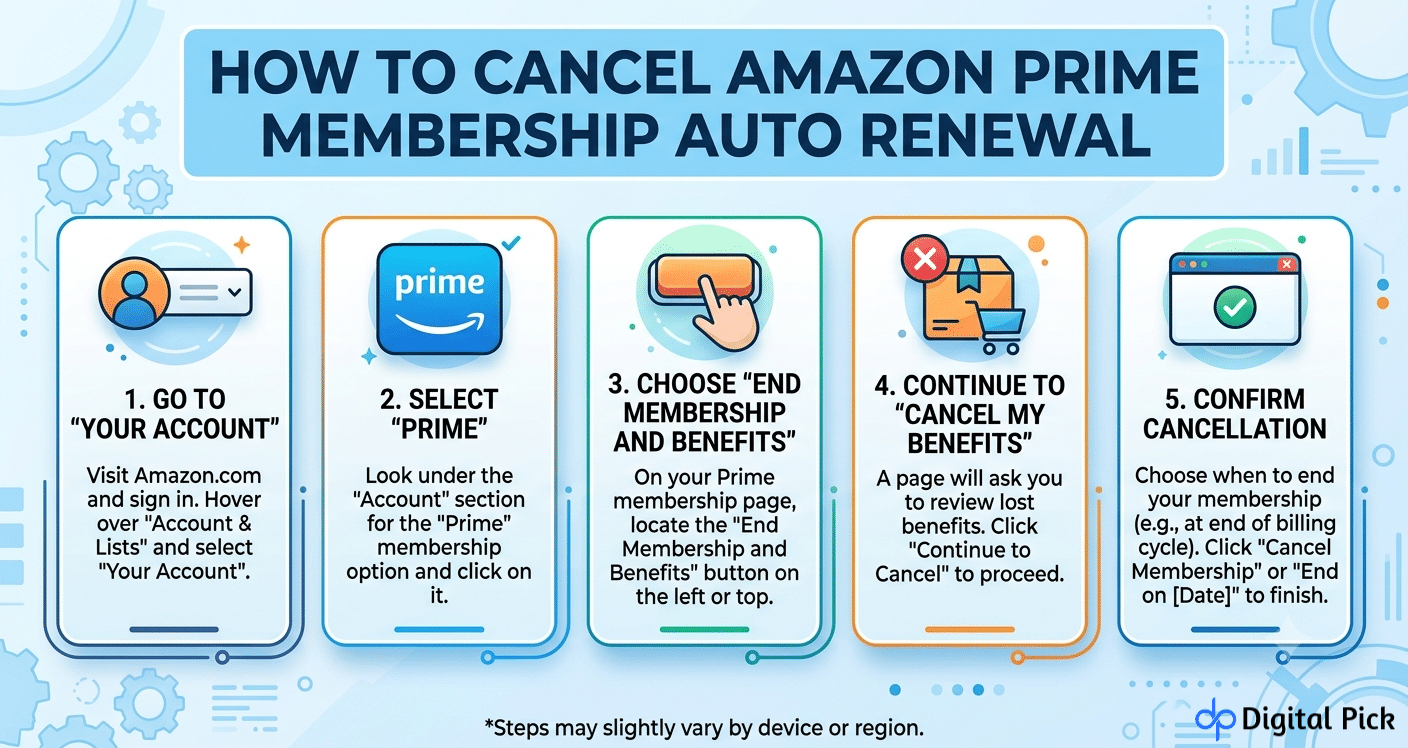
Want to keep using Prime right now but stop the next charge? Turning off auto-renewal does exactly that. You keep every benefit until your current period ends, then it simply stops. No more surprise charges, no confusing menus, and no need to call customer support just to make one simple change. Here’s the complete process, step by step, laid out clearly so you can finish the whole thing in just a few minutes flat.
How to cancel Amazon Prime membership auto renewal vs. Full Cancellation: Know the Difference
These two options sound the same but work differently.
- Turning off auto renewal: This will keep your Prime membership active until the end of your current billing period. After that, it is not renewed and you are not charged.
- Ending your membership immediately: Your benefits are stopped immediately, even if you have paid money for a period of time that you have not used.
Most people choose the first option. You have already paid for this period, so it is better to use it.
Step 1: Sign In to Your Amazon Account
Go to Amazon.com on your computer or phone browser. Log in with your email address and password.
Step 2: Go to Your Prime Membership Page
- In the top right corner click “Account & Lists”.
- From the dropdown menu select “Prime Membership”.
This page shows your current plan, renewal date, and price.
Step 3: Find the Auto Renewal Setting
- Click “Update, Cancel, and More.”
- Look for “Manage Auto Renewal” or “Turn Off Auto Renew.”
Amazon labels this option slightly differently depending on your account type, but it sits in this same general area.
Step 4: Turn Off Auto Renewal
- Click “Turn off Auto Renew” or the toggle switch next to it.
- Confirm your choice when the pop-up appears.
That’s the whole process. You’ll see a message confirming auto renewal is off, along with the exact date your current membership ends.
Doing This From the Amazon App
Using your phone instead of a computer? The steps stay almost the same.
- Open the Amazon app and tap the person icon in the bottom right.
- Tap “Your Account.”
- Select “Prime Membership.”
- Tap “Manage Membership,” then find “Auto Renewal” settings.
- Tap to turn it off and confirm.
Android and iPhone users see the exact same screens here, so the steps don’t change based on your device.
What Happens After You Turn It Off
You keep full access to every Prime benefit until your listed end date. Fast shipping, Prime Video, Prime Music, all of it stays active.
Once that date arrives, your membership simply expires. Amazon won’t charge your card again. You won’t need to do anything else.
If you change your mind before that date, you can turn auto renewal back on with one click, and your membership continues without interruption.
How to Confirm It Worked
Don’t just assume the click went through. Check these two things.
- Check the Prime Membership page again: It should be clearly written that your membership will not be renewed, as well as its expiration date should be given.
- Check your email: Amazon sends a confirmation message once you turn off auto renewal. Keep it as proof.
If either of these doesn’t show up, go back through the steps again, since the setting may not have been saved.
Already Got Charged? Here’s What to Do
Missed the window and got charged for another year or month? You still have options.
- Go back to “Prime Membership” in your account.
- Look for “End Membership and Refund” or a similar option.
- If you don’t see it, contact Amazon customer support directly.
- Explain that you were charged after intending to cancel and haven’t used your benefits.
Amazon typically refunds this if you haven’t placed an order with free shipping or streamed anything since the charge. Using any benefit after the renewal makes a refund less likely.
Set a Reminder for Next Time
The easiest way to stay ahead of this? Set a reminder a few days before your renewal date. Amazon shows this date clearly on your Prime Membership page, so check it once and mark your calendar.
You can also turn on email alerts from Amazon that notify you before your membership renews. Look for this option on the same membership settings page.
Why This Matters More in 2026
Amazon settled a major case with the FTC in 2025 over how hard it made cancellation for customers. Since then, Amazon simplified these menus and added clearer confirmation steps across every device. The auto renewal toggle now sits in a more visible spot than it used to, and the confirmation email arrives faster too. Still, checking your settings directly remains the only sure way to know your subscription status.
Bottom Line
Turning off auto renewal takes just a few clicks, whether you’re on a computer or phone. Go to your Prime Membership page, find the auto renewal toggle, and switch it off. You keep every benefit until your current period ends, then the charges simply stop. Set a reminder before your next renewal date, and you’ll never deal with a surprise charge again.
Quick Answers to Common Questions
A: No. You keep every benefit until your current billing period ends. Only future renewals stop.
A: Yes. Go back to the same settings page and toggle it back on anytime before your end date.
A: No. Nothing changes until the date your current period actually ends.
A: Contact Amazon support and ask for a refund. This usually works if you haven’t used any Prime benefits since the charge.
A: Not quite. Turning off auto-renewal stops future charges, but your existing benefits remain. If you choose to cancel completely instead, your access may be lost immediately.
A: Check your Prime Membership page under your Amazon account. It lists the exact date clearly at the top.
