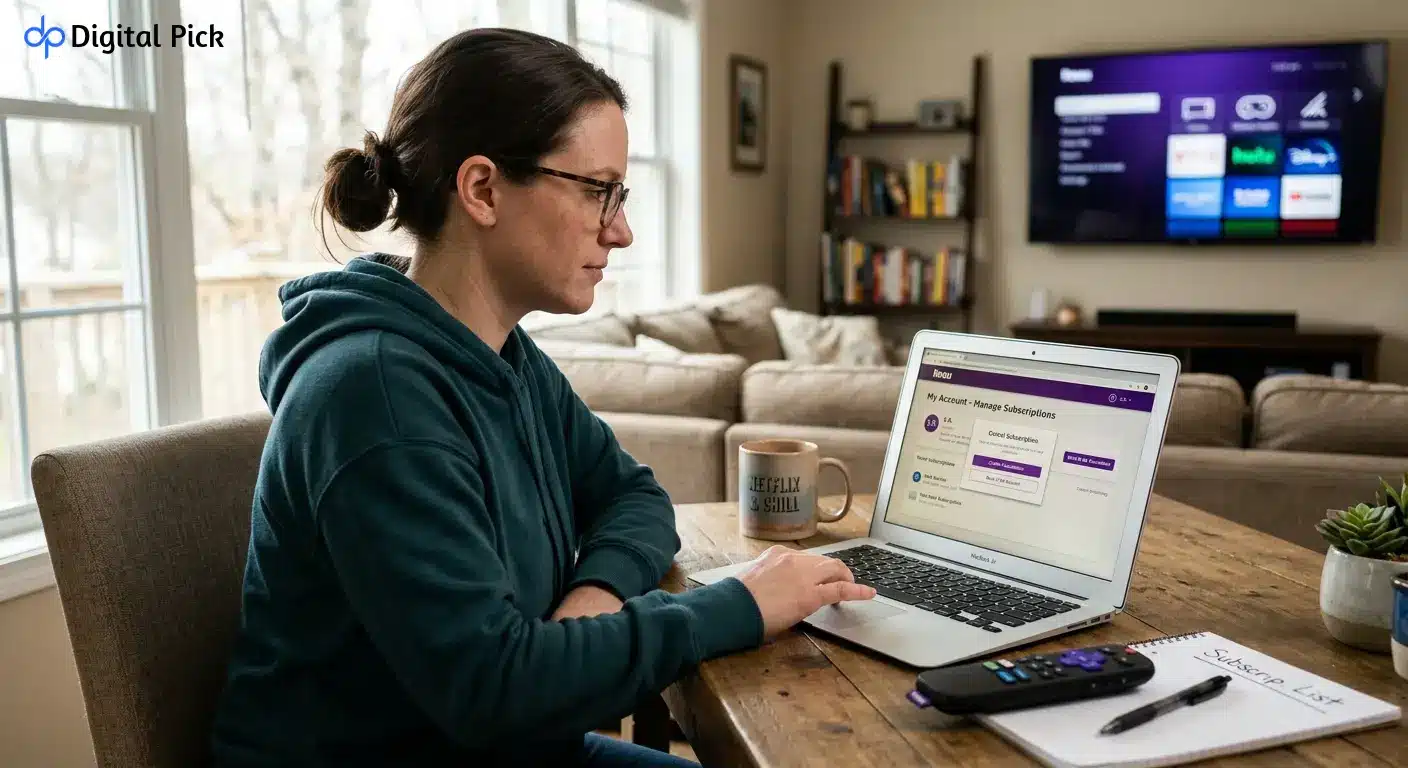
When the cost of streaming increases exponentially, it can be difficult to manage the bill each month. If you want to cancel roku subscription service, you can do it in less than five minutes. You can turn off auto-renewal using a web browser, the remote of your Roku streaming device, or the Roku mobile app.
This helpful article shows you all important ways to easily complete a request to cancel roku subscription. You’ll also learn how to check your roku subscription billing statements, manage free trials and how to handle third-party channels.
What Is a Quick Overview of Roku Subscription Cancellation?
If you need a quick answer on how to complete a request to cancel Roku subscription, use this quick guide.
- On the Web: Visit my.roku.com/subscriptions, sign in, locate your channel and select Turn off auto-renew.
- On Your TV Remote: Highlight the channel app, press the star (*) button, select ‘Manage Subscriptions‘ and select ‘Cancel Subscriptions’.
- On the Mobile App: Open the Roku app, tap Account, select Payments and subscriptions, select your app, and tap Cancel subscription.
You can watch your channel until the end of your current billing period. Roku doesn’t charge any additional fee for cancelling.
What Types of Subscriptions Are Billed Through Roku?
Before you start, you need to see who makes your account bill. Roku Pay handles the charges for channels purchased from the Roku Channel Store.
How Do You Identify Roku Pay Charges?
Look at your bank or credit card statement. Roku’s charge will appear with one of these names:
- Roku
- Roku for [Channel Name]
- The Roku Channel
If these names appear on your bank statement, you can cancel directly through Roku. If the charge has the name of another company, then you have to cancel through that service only.
How Do You Check Active Subscriptions on Your Account?
Before you turn off auto-renew, you should confirm which channels are active.
- On your phone or computer, open any browser.
- Visit official website at my.roku.com.
- Your email address and password is required to sign in.
- There, click on ‘Manage your subscriptions’.
- Under Active Subscriptions, view the list.
All current services, renewal dates, and payment amounts are listed on this page. If there’s no app on this list, Roku doesn’t charge you for that.
How Do You Cancel a Roku Subscription Using a Web Browser?
The easiest way to manage your payment is to use a web browser. You can use a laptop, tablet or smartphone.
Step 1: Log into Your Roku Account
Visit my.roku.com/subscriptions in your web browser. Type in your account details and log in.
Step 2: Locate Your Active Channel
To find the Active Subscriptions section, scroll down the page. Find the channel or service that you want to close.
Step 3: Select Manage Subscription
Click the Manage subscription button next to the channel name. A menu with options will appear on your screen.
Step 4: Turn Off Auto-Renew
Select Turn off auto-renew. Roku will ask you to confirm your decision.
Step 5: Confirm Your Cancellation
If asked, select the reason for leaving the service and then confirm. The status of your subscription will change immediately. The system will show the exact date when your access will end.
How Do You Cancel a Roku Subscription directly on Your TV?
You can complete a cancel roku subscription process right from your TV screen. You only need your Roku remote.
Step 1: Turn On Your Roku Device
On your Roku remote to go to the main home screen, press the Home button.
Step 2: Highlight the Channel App
Use the directional arrow pad on your remote to navigate to the channel you want to cancel. Highlight that icon, but don’t press OK to open it.
Step 3: Open the Options Menu
On your remote, press the (*) button. An options menu will open on the side of your screen.
Step 4: Choose Manage Subscription
Scroll through the menu options and select Manage subscription.
Imp: If you do not see “Manage subscription” in the menu, Roku does not handle billing for that channel.
Step 5: Select Cancel Subscription
Click on Cancel subscription. A pop-up window will display the date your access expires.
Step 6: Confirm Your Choice
Press OK on your remote to confirm cancellation. Select Done to close the window.
How Do You Cancel a Roku Subscription Using the Mobile App?
The Roku mobile app lets you update your billing preferences from your mobile phone.
Step 1: Open the Roku App
Open the Roku app on your iOS or Android device. Make sure you sign in with the same account that’s linked to your streaming player.
Step 2: Go to Account Settings
Tap on the Account icon present at the bottom-right corner of the app screen.
Step 3: Select Payments and Subscriptions
Tap on the ‘Payments and Subscriptions‘ tab to see your payment options and account history.
Step 4: Find Your Subscription
To see your current channel list, tap Active subscriptions. Select the channel you want to remove.
Step 5: Tap Cancel Subscription
Select Cancel subscription and follow the prompts on the screen to confirm your request.
What Are the Differences Between Roku Cancellation Methods?
The table below outlines the 3 main ways to manage your cancel roku subscription request:
| Cancellation Method | Best Device to Use | Main Requirement | Access After Cancellation |
| Web Browser | Computer, phone, or tablet | Internet connection and Roku login | Remains active until end of term |
| TV Remote | Roku TV or streaming player | Physical Roku remote with Star (*) key | Remains active until end of term |
| Mobile App | iOS or Android smartphone | Roku app signed into main account | Remains active until end of term |
What Are the Exceptions for Disney+, Hulu, and Sling TV?
You can easily stream popular entertainment platforms like Peacock and Hulu on your Roku device by downloading their apps directly from the channel store. Some popular streaming providers adopt different rules for account changes. Even though the payment is processed by Roku, these providers manage the account status on their respective platforms. Roku subscription is also very popular like other famous and established video subscription platforms like Netflix subscription, Hulu subscription, Apple TV subscription, Youtube TV subscription etc.
How Do You Handle Disney+ and Hulu Charges?
Roku processes payments for Disney + and Hulu in some bundles. However, to cancel them, you need to contact their customer service team or log in to their official website.
- Disney+ Support: Call 888-905-7888 or visit the Disney+ help center.
- Hulu Support: Call 877-824-4858 or visit the Hulu account settings page.
- Sling TV Support: Call 888-394-6698 or go to your Sling account page.
How Do You Cancel Subscriptions Billed Outside of Roku?
Many users install apps on Roku but pay another company directly. Examples include Netflix, Amazon Prime Video, Apple TV+ and Max.
How Do You Know If a Subscription Is External?
If you open the Star (*) menu on your TV and see no option for Manage subscription, your account is billed outside Roku.
How Do You Stop External Charges?
- Netflix: Visit netflix.com, sign in, go to Account, and select Cancel Membership.
- Amazon Prime Video: Visit amazon.com, navigate to Subscriptions, and turn off auto-renew.
- Apple TV+: Open apple.com or your Apple ID account settings on an Apple device to end billing.
- Paramount+ or Max: Visit their direct websites if you signed up on a computer instead of through Roku Pay.
What Is the Difference Between Roku Pay and External Billing?
This breakdown helps you see where to handle your roku subscription cancel request based on where you bought the channel.
| Streaming Channel | Payment Processor | Can You Cancel via Roku? | Alternative Cancellation Location |
| The Roku Channel | Roku Pay | Yes | my.roku.com/subscriptions |
| Roku Premium Subscriptions | Roku Pay | Yes | my.roku.com/subscriptions |
| Netflix | Direct Credit Card / External | No | netflix.com/account |
| Amazon Prime Video | Amazon Billing | No | amazon.com/subscriptions |
| Apple TV+ | Apple ID | No | Apple ID Account Settings |
| Disney+ / Hulu (Direct Sign-up) | Provider Direct | No | Channel Website Account Page |
How Do You Cancel Roku Smart Home Subscriptions?
Roku sells smart home products such as security cameras and video doorbells. There are different monthly plans for these services.
Step 1: Sign into Your Account
Open browser and go to my.roku.com. Sign in with your account information.
Step 2: Open Subscription Settings
Click on Manage your subscriptions under account settings.
Step 3: Select Roku Smart Home
Locate the Roku Smart Home Subscription entry in your list.
Step 4: Uncheck Cameras and Confirm
Select Manage subscription, uncheck all attached cameras or doorbells, and click Cancel subscription.
What Happens After You Cancel Your Roku Subscription?
Understanding what happens when you cancel can help you avoid unwanted surprises in your bill.
Do You Lose Access Immediately?
No. When you cancel, the automatic renewal stops for the next billing cycle. You retain full access to the channel for the remainder of your paid term.
Will You Receive a Confirmation Email?
Yes. Within a few minutes of the cancellation, Roku sends a confirmation email. Be sure to save this email for your records. If there is any problem related to billing later, it will be used as evidence.
What Is Roku’s Refund Policy for Canceled Accounts?
Roku has clear rules regarding payments and refunds.
Does Roku Provide Partial Refunds?
Roku doesn’t offer pro-rated refunds for cancelling subscriptions in the middle of the month. When you end the subscription prematurely, Roku retains the pre-paid fee and your service continues until the end of the billing period.
How Do Free Trial Cancellations Work?
If you sign up for a free trial, you’ll need to cancel it before the trial period ends. If you cancel late, Roku will deduct the money from your card for the next billing cycle.
How Do You Avoid Charges from Roku Free Trials?
Free trials are a great way to try out new channels. However, if you don’t turn them off in time, they automatically turn into a paid plan.
Step 1: Track Your Trial End Date
Note the exact day your trial expires when you sign up.
Step 2: Cancel Right After Sign Up
You can cancel your trial immediately after starting it. Still, you will be able to watch the content during the entire trial period. Auto-renew will be turned off, so you won’t be charged.
Step 3: Check Expired Status
Visit my.roku.com/subscriptions and check that the trial appears under Expired Subscriptions or shows auto-renew as off.
What Should You Do If Roku Charges You After Cancellation?
If you see any charges in your bank statement even after cancellation, follow these troubleshooting steps.
Step 1: Verify the Account Used
Many households have more than one Roku account. See if any other family members have signed up using a different email address.
Step 2: Check Purchase History
- Visit my.roku.com.
- Scroll down to Payment Information.
- Click on View your purchase history.
- Check the charges and transaction numbers listed.
Step 3: Contact Roku Customer Support
If you have a cancellation email, but you’re still being charged money, contact Roku support directly. Show them your confirmation email for corrections.
How Do You Turn On a PIN to Stop Accidental Charges?
You can set up a PIN on your account so family members or kids cannot start new subscriptions by mistake.
Step 1: Visit Roku Settings
Go to my.roku.com and log into your account.
Step 2: Choose PIN Preferences
Under PIN Preference, click Update.
Step 3: Set Your PIN
Select Always require a PIN to make purchases and add items from the Channel Store. Create a four-digit number and save your settings.
How Do You Close or Deactivate Your Entire Roku Account?
If you sell your device or no longer want to use Roku, you can close your whole account.
Step 1: Cancel All Active Subscriptions
You must complete a roku subscription cancel step for every active channel before closing your account. Roku will not let you close an account with active bills.
Step 2: Deactivate the Account
- Log in at my.roku.com.
- Scroll to the bottom of the page.
- Select Deactivate account.
- Fill out the feedback form and confirm.
Once deactivated, your account cannot be reopened. You will lose access to all purchased content.
What Are Common Mistakes to Avoid When Canceling Roku?
Avoiding simple mistakes saves time and prevents extra charges on your card.
- Deleting the App Only: Removing an app icon from your TV home screen does not stop your monthly bill. You must turn off auto-renew.
- Unplugging Your Device: Disconnecting your Roku TV or box from power does not end active subscriptions.
- Using the Wrong Email: Make sure you sign into the exact account linked to the TV device you want to update.
- Ignoring Third-Party Services: Remember that providers like Disney+, Hulu, or Netflix require direct website changes if Roku does not bill them.
Most Frequently Asked Questions
Q: How do I cancel my Roku subscription on my TV?
A: Highlight the channel on your home screen, press the Star (*) button on your remote, select Manage subscription, and choose Cancel subscription.
Q: Can I cancel a Roku subscription at any time?
A: Yes. You can turn off auto-renew whenever you want. You will retain access to your content until your paid billing period ends.
Q: Why is there no manage subscription option on my Roku?
A: If you do not see this option, Roku does not bill you for that channel. You must log into the service website on a browser and cancel there.
Q: Will removing an app cancel my subscription?
A: No. Deleting an app icon from your Roku device does not end recurring billing. You must select Manage subscription and turn off auto-renew first.
Q: Does Roku give refunds for canceled subscriptions?
A: No. Roku does not provide partial or prorated refunds for remaining days in a billing period.
Q: How do I check what subscriptions I am paying for on Roku?
A: Sign into my.roku.com/subscriptions. The page shows all active paid plans, prices, and renewal dates connected to your account.
Q: What happens if I cancel a free trial early?
A: If you cancel a free trial early, you will still have access to the service until the trial period ends. You will not be charged when the trial finishes.
